NDI Wireless Connection Tutorial
Learn how to connect your iPhone to OBS Studio wirelessly using NDI (Network Device Interface) technology. Perfect for maximum flexibility and freedom of movement during your streams.
📋 What You'll Need
- ✓iPhone or iPad with iOS 14+
- ✓Computer with OBS Studio installed
- ✓Wi-Fi network (both devices on same network)
- ✓NDI plugin for OBS Studio
- ✓Pro Camera for OBS Studio app
Download NewTek NDI Plugin for OBS Studio
With the latest version of the OBS NDI plugin, you have to manually install the NDI runtime on your computer. Please follow the instructions provided by the NDI plugin author.
📦 Installation Steps:
- Visit the official NDI plugin releases page
- Download the latest version for your operating system (Windows or macOS)
- Install the NDI runtime first
- Then install the OBS NDI plugin
- Restart OBS Studio after installation
Important
You must install both the NDI runtime and the OBS plugin. Installing only one will not work. Make sure to restart OBS Studio after installation.
Download and Configure the iOS App
Download the "Pro Camera for OBS Studio" app from the App Store and configure it for NDI streaming.
Pro Camera for OBS Studio
Available on the App Store
⚙️ App Configuration:
- Open the app and switch to the NDI Mode page
- Enable local network permission when prompted (required for NDI to work)
- Click the "Start NDI Camera" button to enter the OBS Camera page
- Click the Send button to trigger the NDI signal transmission
Network Permission
iOS will ask for "Local Network" permission. You must allow this for NDI to discover and connect to your computer. If you accidentally denied it, go to Settings → Privacy & Security → Local Network → Pro Camera for OBS Studio and enable it.
Add NDI Source to OBS Studio
Now that your iPhone is broadcasting an NDI signal, add it as a source in OBS Studio.
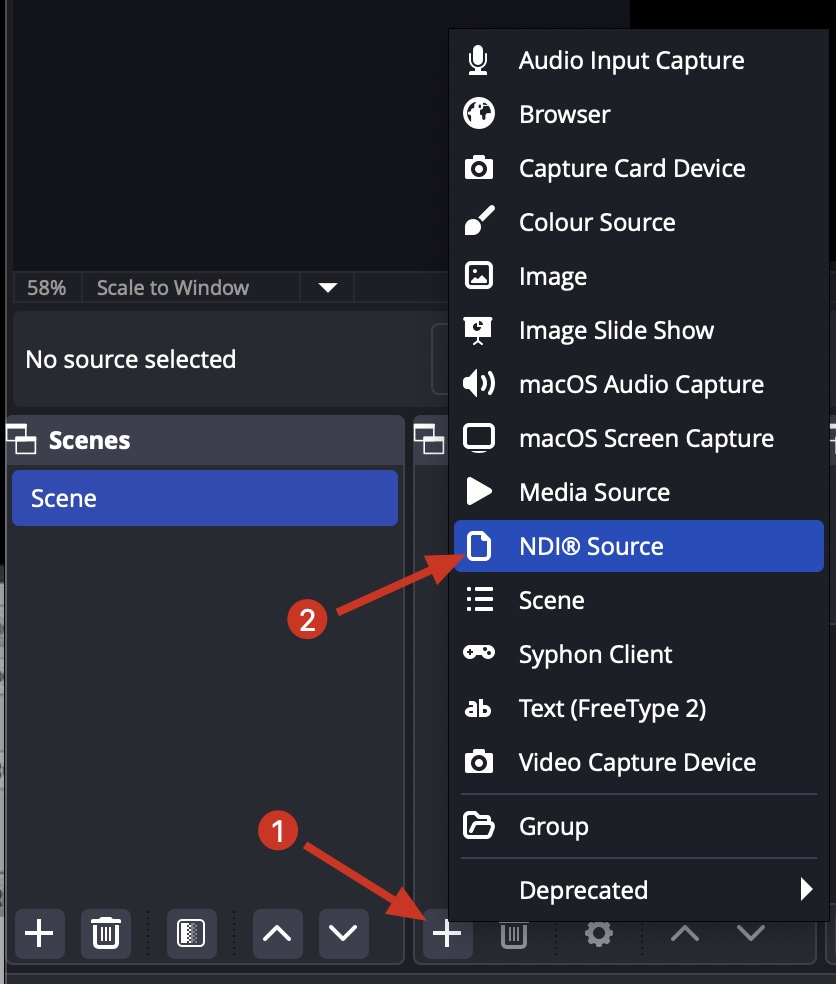
a. Add the NewTek NDI Source
In OBS Studio's Sources panel, click the + button and select "NewTek NDI™ Source" from the list.
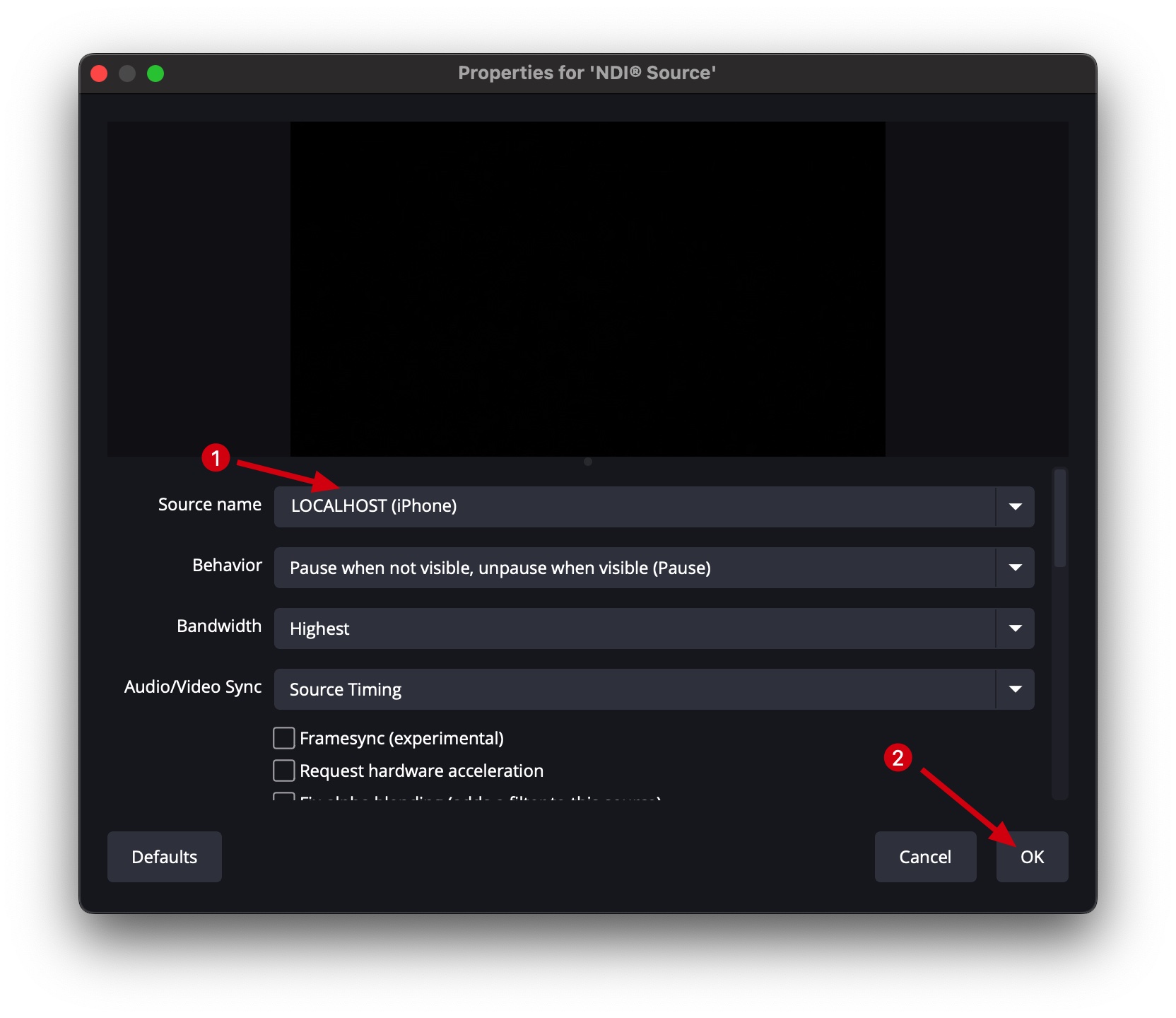
b. Select Your Network Device
In the properties window, find the Source name dropdown. Your iPhone should appear in the list (it will show the device name). Select it and click OK.
Success!
Your iPhone camera feed should now appear in OBS Studio! You can move freely without cables. Enjoy using it!
💡 Tips for Best Performance
📶 Use 5GHz Wi-Fi
Connect to a 5GHz network for better bandwidth and lower latency. Avoid 2.4GHz if possible.
🔌 Keep iPhone Charged
NDI streaming uses more battery. Keep your iPhone charged or connected to power for long sessions.
📡 Close Range
Stay relatively close to your Wi-Fi router for the most stable connection.
🚫 Minimize Network Traffic
Avoid heavy downloads or uploads on the same network during streaming.
❓ Frequently Asked Questions
📚 Related Guides
Wired Connection Tutorial
Learn how to connect via USB cable for ultra-low latency streaming.
Read tutorial →NDI vs USB: Which is Better?
Detailed comparison to help you choose the right connection method.
Read comparison →Troubleshooting Guide
Solutions for common NDI connection and network issues.
Read guide →Best Camera Settings
Optimize settings for wireless streaming quality.
Read guide →Experience Wireless Freedom!
Download Pro Camera for OBS Studio and start streaming wirelessly with professional NDI technology.
📱Download on App Store→