Wired Connection Tutorial
This tutorial will show you how to use your iOS device as a camera source for OBS Studio, achieving high-quality video streaming through a direct cable connection. The entire setup process typically takes less than 1 minute.
📋 What You'll Need
- ✓iPhone or iPad
- ✓USB Lightning cable (or USB-C for iPhone 15+)
- ✓Computer with OBS Studio installed
- ✓Pro Camera for OBS Studio app
⚡ Setup Instructions
Connect Your iPhone to Computer
Connect your iPhone to your computer using a USB cable. If prompted on your iPhone, tap "Trust This Computer".
Tip
Use a high-quality cable for best results. Official Apple cables or MFi-certified cables are recommended.
Add Video Capture Device in OBS
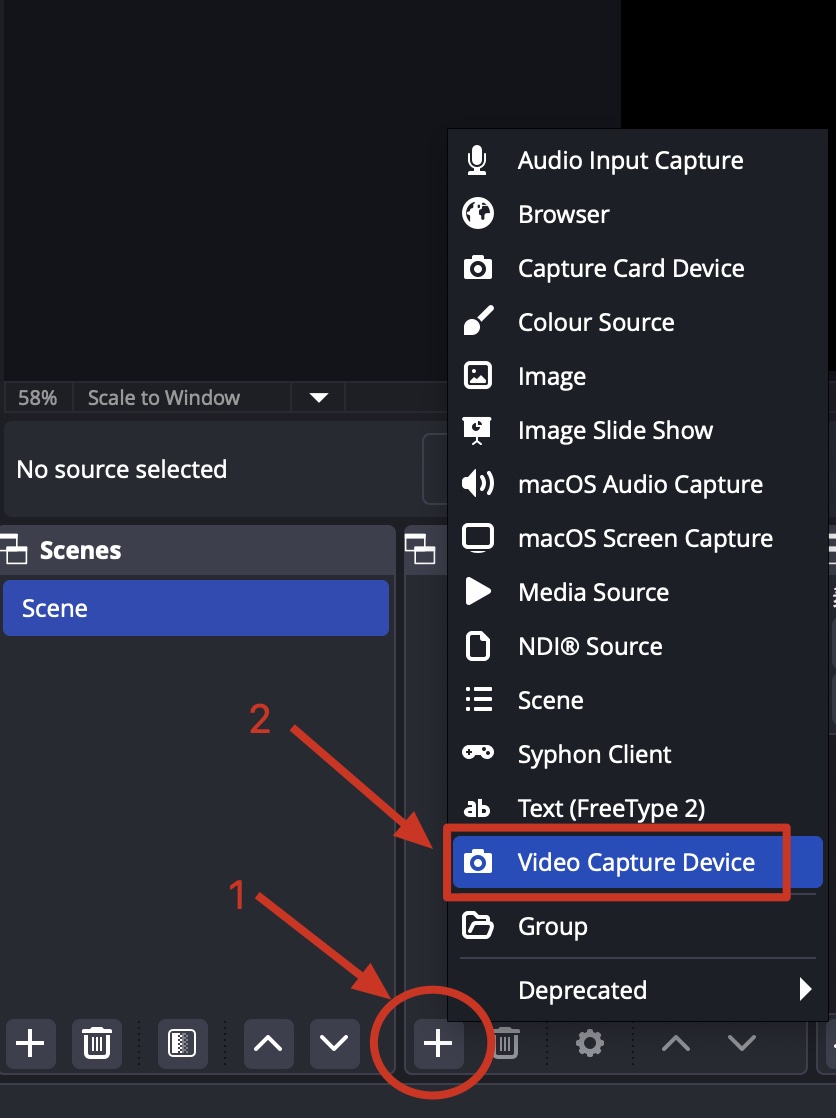
In OBS Studio's Sources panel, click the + button (Add Source) at the bottom, then select "Video Capture Device".
Create New Capture Device
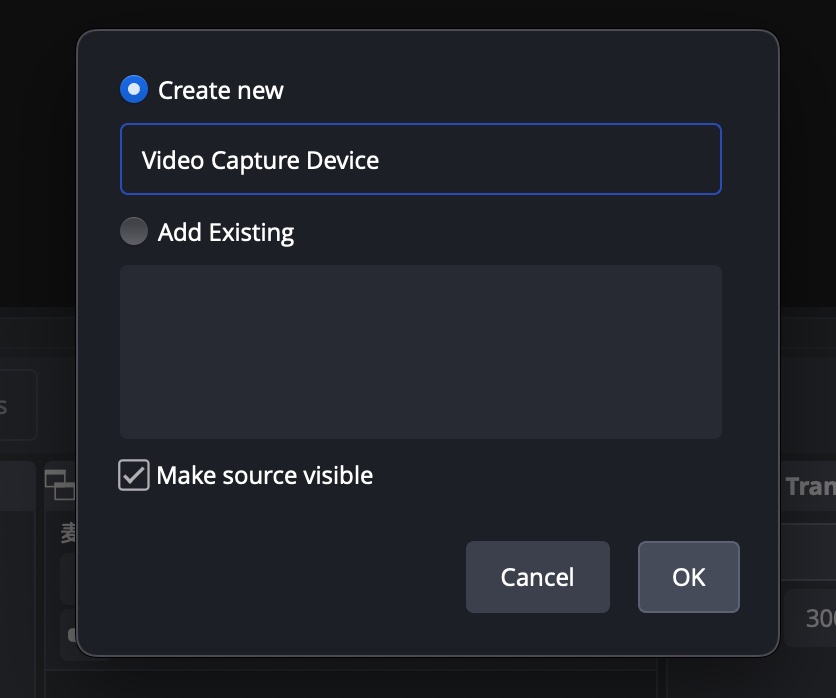
In the dialog that appears, create a new Capture Device (you can name it anything you like, such as "iPhone Camera") and click OK.
Select Your iPhone Device
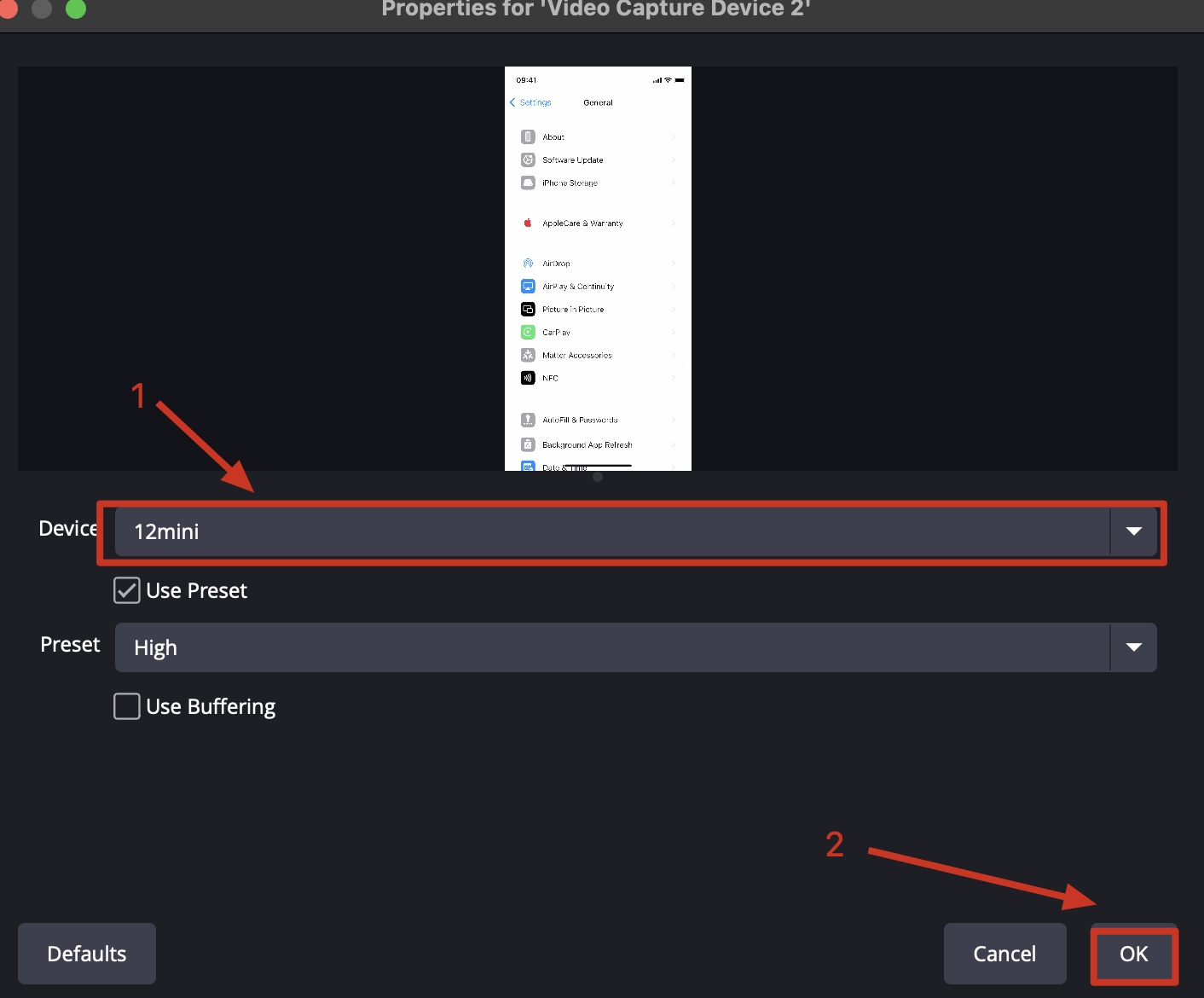
In the Device dropdown menu, be sure to choose your current iPhone device, then click OK.
Note
Your iPhone will appear in the device list with its name (e.g., "iPhone 14 Pro"). If you don't see it, make sure the cable is properly connected and you've trusted the computer.
Launch the Camera App
Download the "Pro Camera for OBS Studio" app from the App Store, open the app, and click the "Start Wired Camera" button to enter the OBS Camera interface.
Pro Camera for OBS Studio
Available on the App Store
Success!
Tap the screen to hide or show the camera function panel. You can now control zoom, exposure, focus, and switch between front/back cameras. Enjoy using it!
📱 Camera Controls
Once connected, you can control these settings directly from your iPhone:
🔍 Zoom Control
Pinch to zoom in/out on your subject
💡 Exposure
Adjust brightness levels
🎯 Focus
Tap to focus on specific areas
🔄 Switch Camera
Toggle between front and back cameras
❓ Frequently Asked Questions
📚 Related Guides
NDI Wireless Connection Tutorial
Learn how to connect wirelessly via NDI for maximum flexibility and freedom of movement.
Read tutorial →NDI vs USB: Which is Better?
Compare both connection methods to find the best one for your streaming needs.
Read comparison →Troubleshooting Guide
Solutions for common connection problems and technical issues.
Read guide →Best Camera Settings
Optimize your iPhone camera settings for professional streaming quality.
Read guide →Ready to Start Streaming?
Download Pro Camera for OBS Studio and transform your iPhone into a professional camera in less than 1 minute!
📱Download on App Store→